The platform
The tools behind the review, for your own team
Planning, scheduling and project control training for construction projects, built on Primavera P6.
Where a good schedule saves your team time and money
Most schedule costs are not in the software. They are in problems found late, reports built by hand and durations nobody can defend.
Problems found on paper, not on site
Broken logic, missing resources and unrealistic float show up in the check, while they are still cheap to fix.
Less time building reports
Curves and checks come straight from the XER, so your team stops rebuilding them in spreadsheets at every update.
Durations you can defend
Each duration traces back to a quantity, a rate and a crew. Reviews move from opinion to facts.
Office and field on one plan
Crews plan their work against the master schedule, and any mismatch reaches the scheduler before it reaches the site.
A team that can read its schedule
When leads understand the schedule, decisions stop waiting on one person to explain it.
Health check
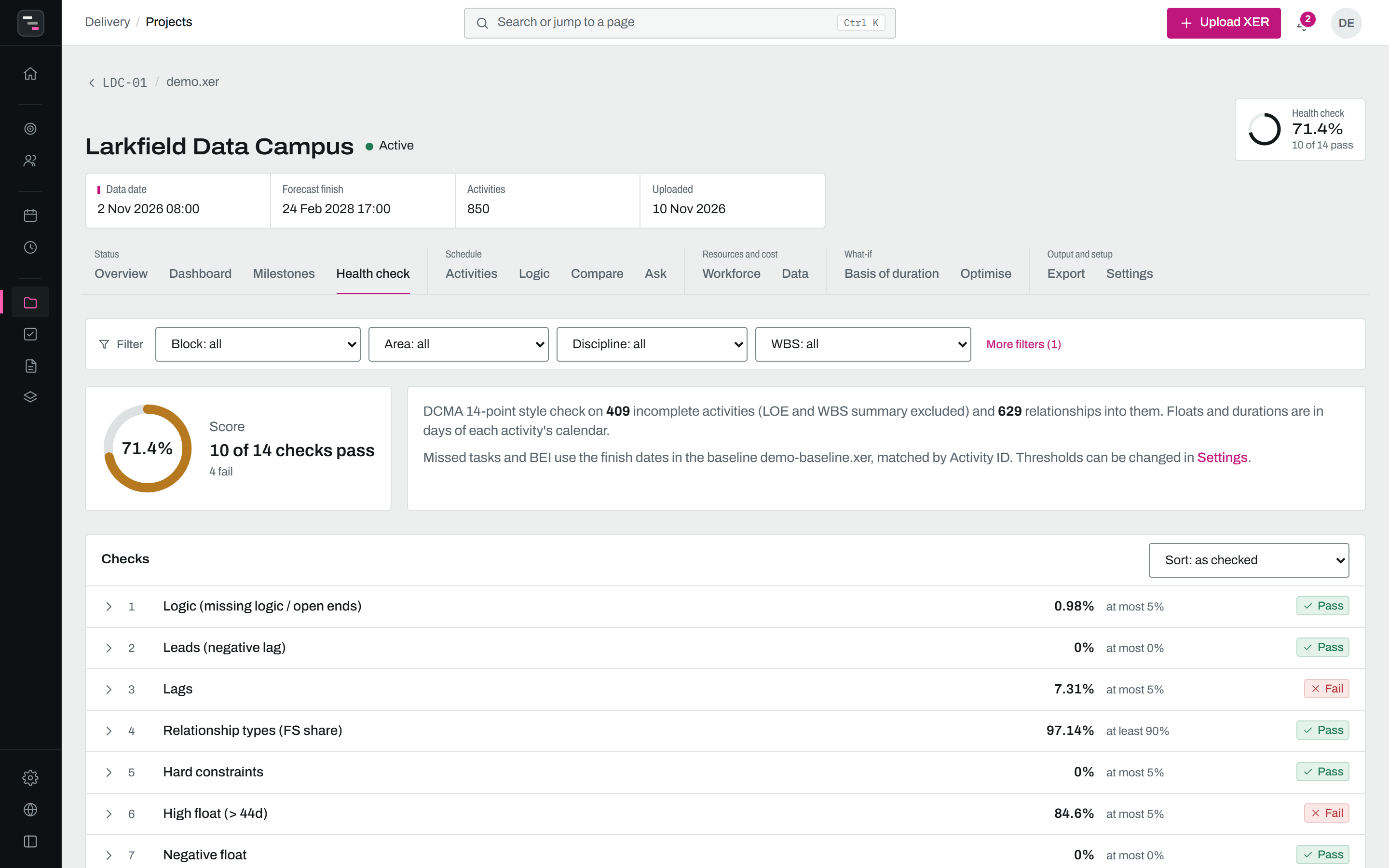
A DCMA-style health check you can act on
Fourteen checks on the incomplete activities, each with its threshold, result and the list of activities behind it.
- Logic, leads, lags, relationship types, constraints
- High and negative float, long durations, invalid dates
- Critical path test and BEI, thresholds set by you
Schedule reader
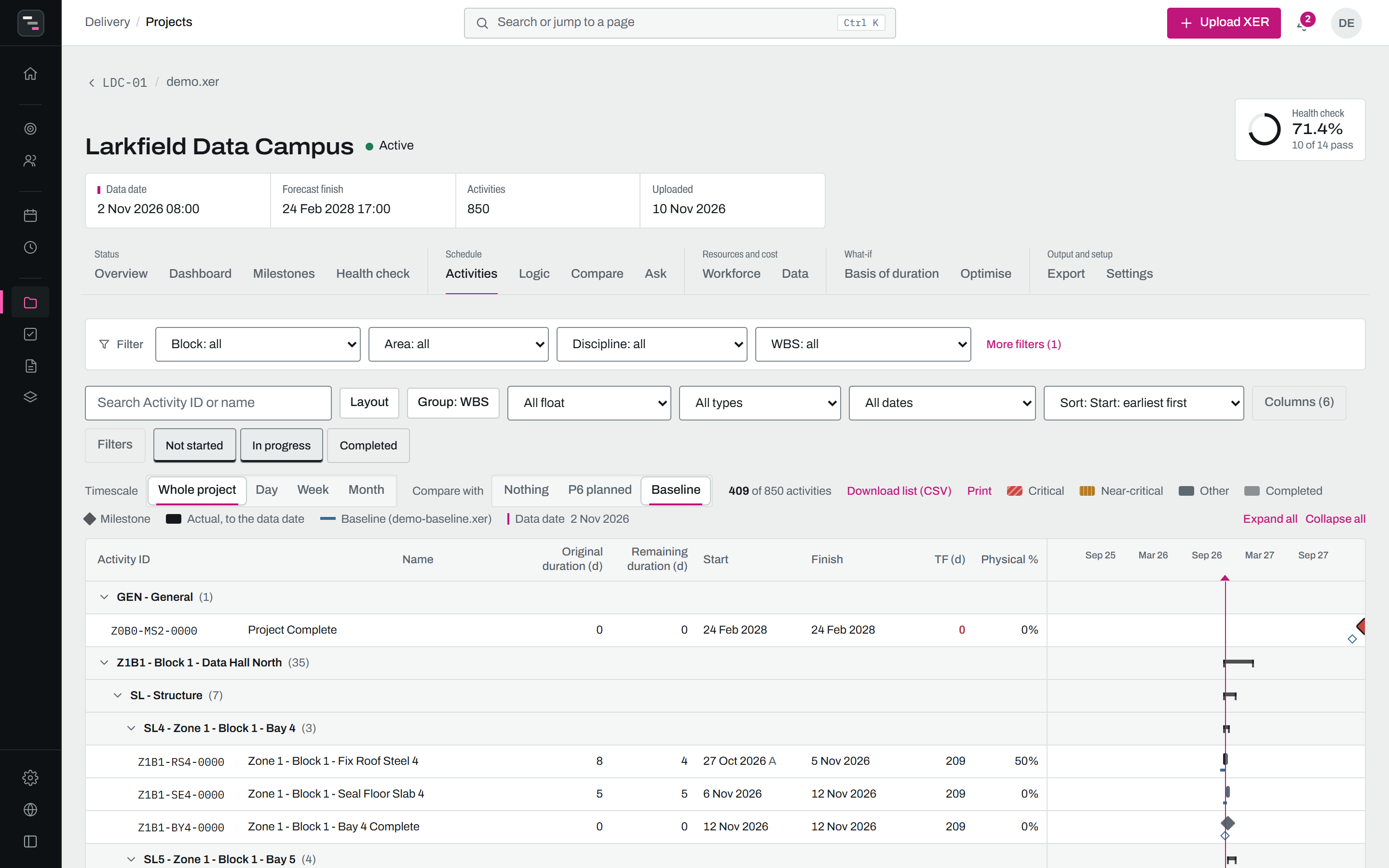
The whole schedule, grouped your way
A Gantt grouped by WBS, any activity code or work package, with float colours, the baseline or P6 planned dates under each bar, the data date line and a detail panel for every activity.
- Search by ID or name, filter by status, type and float
- Dates, floats, calendar, resources, codes and notes
- Smooth on schedules with thousands of activities
Field team
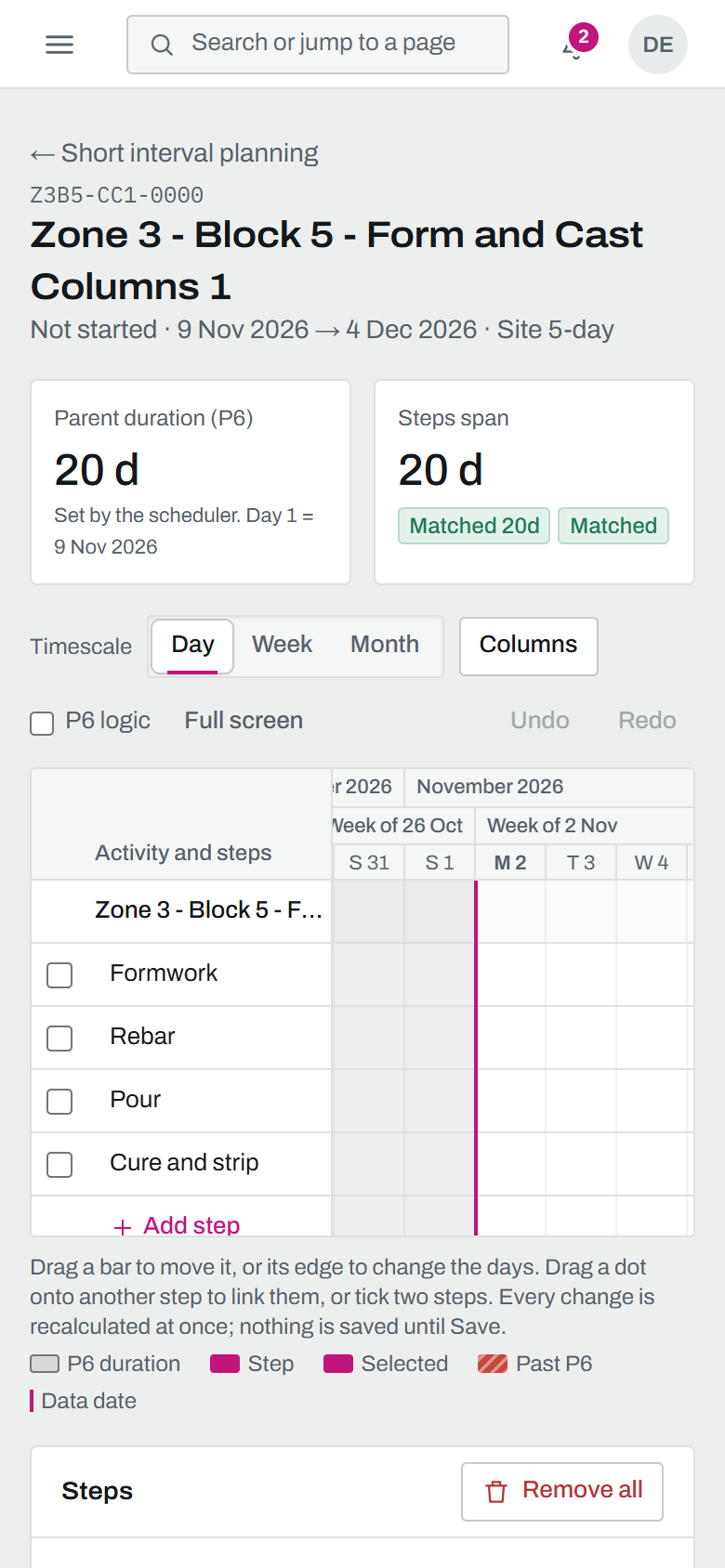
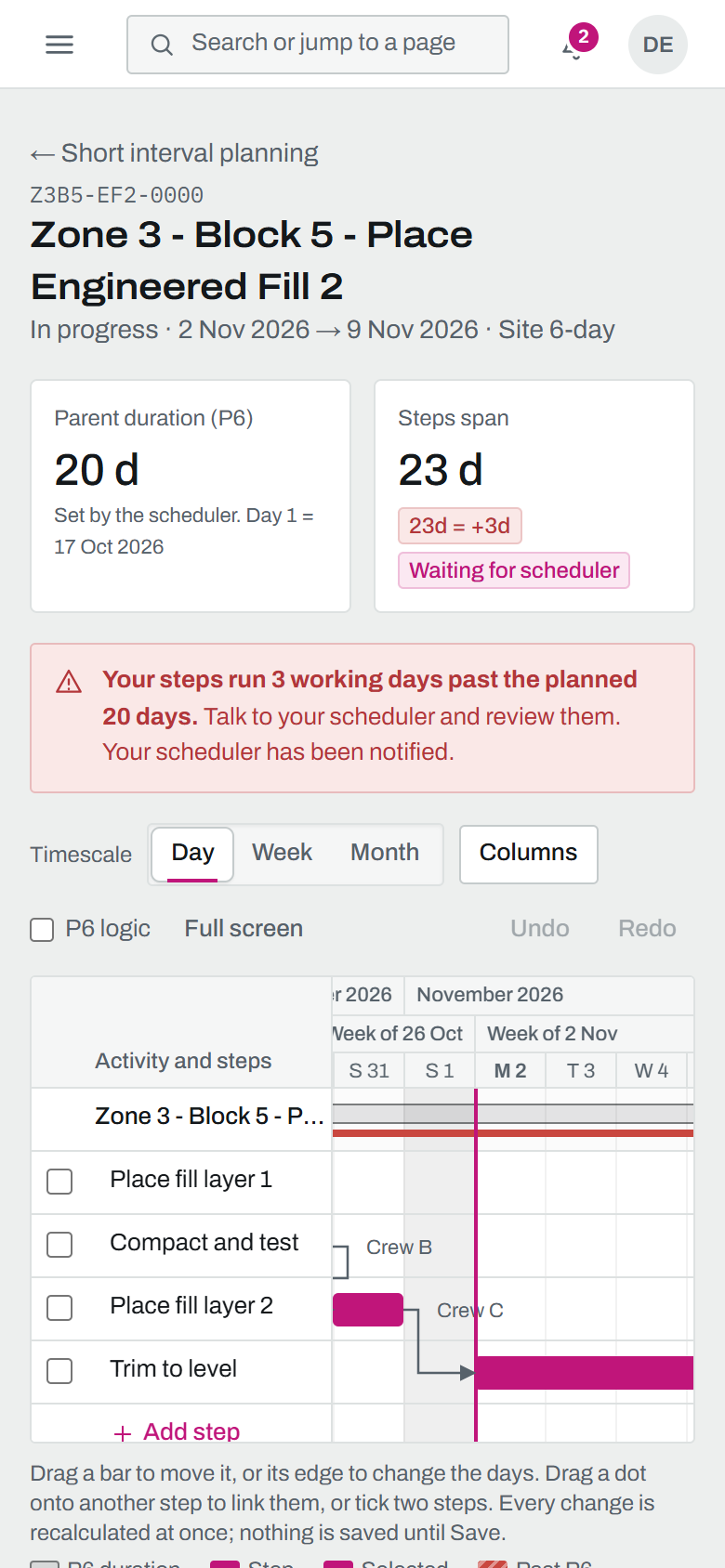
Crews plan the work, you keep the schedule
Field users split an activity into steps. When the steps no longer fit the P6 duration, you get a review request and can accept it with its downstream impact, or send it back.
- Green when the span matches, red or amber with the difference
- Daily progress rolls up to the activity
- Accepted changes run through the logic as a scenario
Built on what is in your XER
Every figure is read from the file or set by you. Nothing is estimated behind your back.
Validation report
Missing resource loading, costs or calendars, resource curves and area key coverage, flagged before you rely on a curve.
Manhours, FTE and cost
Per resource and area, weekly or monthly, with your baseline, early and late on one graph. Every curve reconciles to the XER totals.
Health check
DCMA 14-point style: logic, float, constraints, durations, critical path test and BEI, with your thresholds.
Gantt and logic
Group by WBS or activity code and trace predecessors and successors with driving links highlighted.
Updates and key milestones
See what moved between uploads, and track the milestones you choose with start, finish and duration deltas.
Basis of duration
Durations from manhours, quantities and rates, crews and shifts, run through the logic as a what-if scenario.
Short interval planning
Field users see their next 3 weeks on a Gantt, grouped by WBS or activity codes as in P6, turn an activity into a parent, drag steps into place, link them and report progress and constraints. Steps that run past the P6 duration come to you for review, with what would move in P6, and every change is in the history.
Private by design
Each account sees only its own uploads. Field users see only the activities you assign to them.
SPI, CPI and KPIs
Earned value at the data date with the standard PMBOK formulas, in cost or labor hours, by block, area, discipline or resource.
What was really spent
Import timesheet hours, the cost report and payments, keyed by Activity ID, WBS, activity code or your own cost codes. CPI is then worked out from that spend, and a file whose actuals P6 computed from the plan is flagged.
Filter by anything
Block, area, discipline, resource or any activity code, sorted by duration, float, manhours or dates. One filter follows you across the tabs.
Ask the schedule
Plain questions answered from the file: logic flow, delays, upcoming work, SPI and CPI. Rule-based, so every answer can be traced.
Pull any data
Progress, planned, earned, actual and remaining, by activity, block, discipline or resource. Download to Excel or CSV.
Optimise
Repair open ends, duplicate and redundant links, and look for an earlier finish by overlapping work or adding shifts on the driving path. Every proposal is checked by the forward pass; you download the change list for P6.
Contract requirements
The contract's float limits, health-check limits and required reports, set once per project and followed by every upload, the dashboard, the trend and the exports.
No setup project, no import templates
- 01
Export from P6
File, Export, XER: the file you already send with every update.
- 02
Upload
Drag it in. If the file holds several projects, pick one.
- 03
Set it up
Choose the area key, periods, hours per FTE and health-check thresholds.
- 04
Use the results
Share the curves, fix what the health check finds, export to Excel.